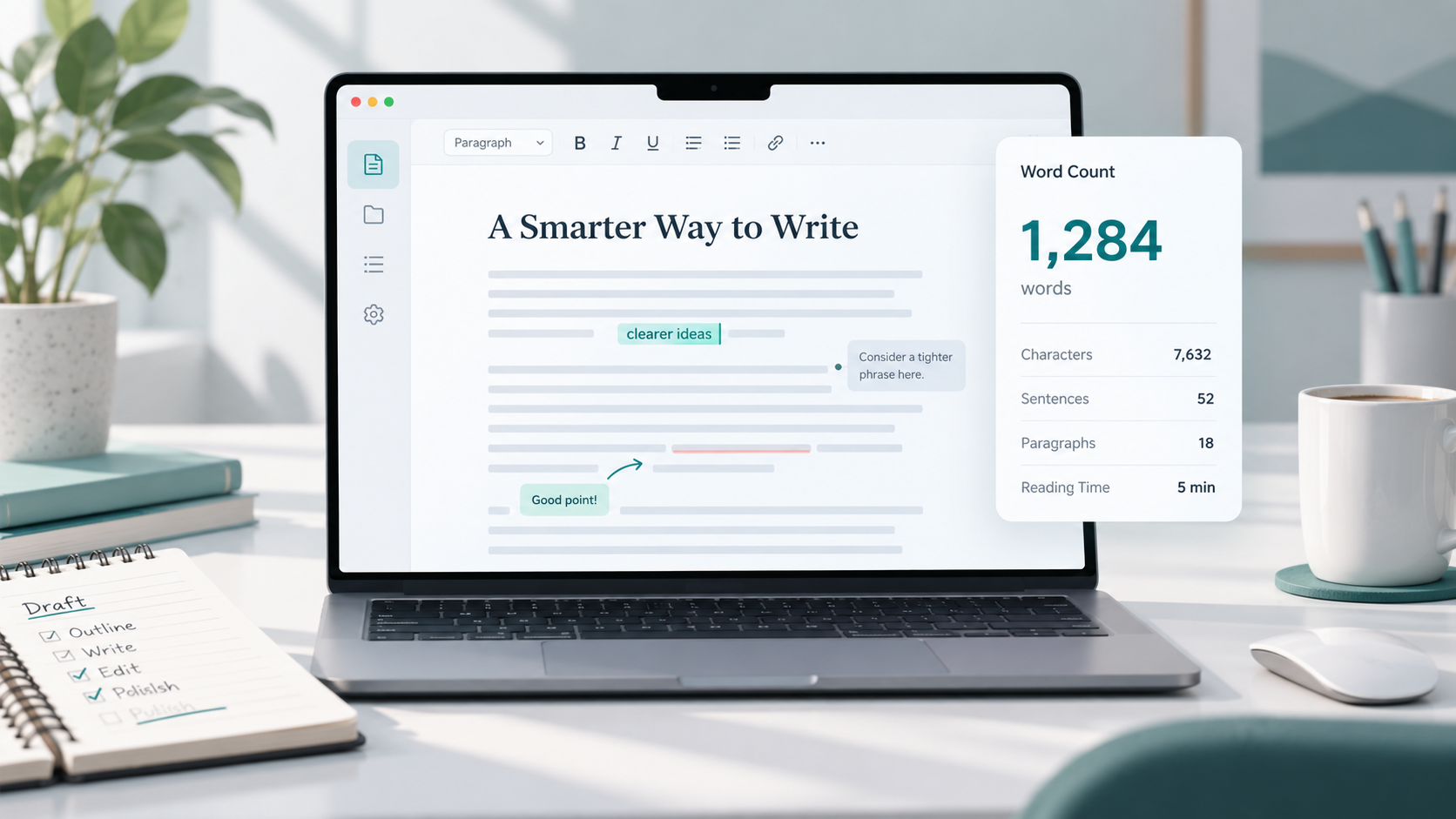
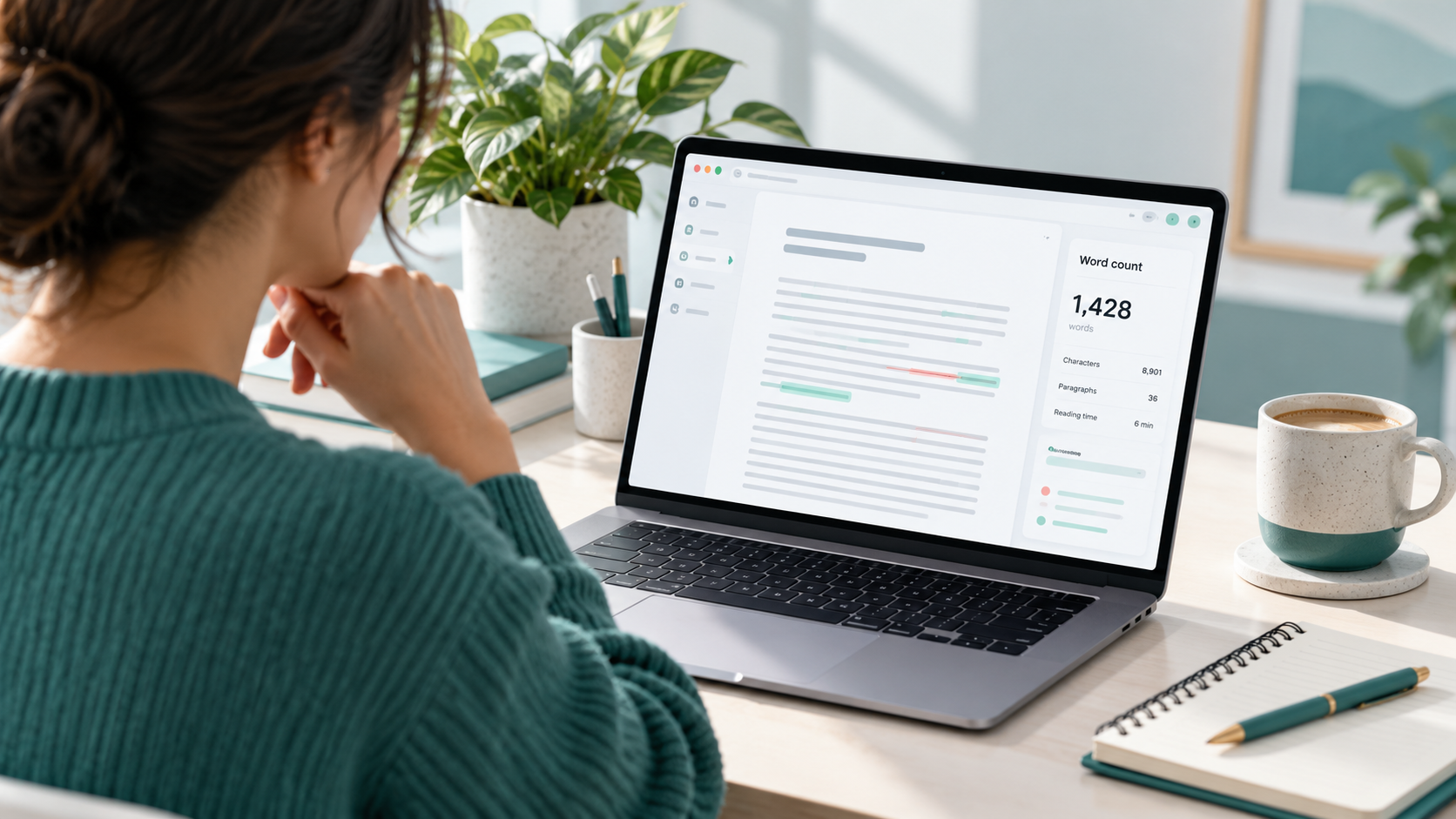
You finish writing an article, paste it into one tool, and see 1,248 words. Then you open the same text somewhere else and get 1,251.
Nothing appears to have changed, so why are the numbers different?
This is more common than many writers expect. Microsoft Word, Google Docs, website editors, online counters, and command-line tools can use slightly different rules when deciding what counts as a word.
For everyday writing, a difference of a few words usually does not matter. But when you are working with a strict assignment limit, publishing requirements, client specifications, or content guidelines, knowing how to check word count properly can save time and confusion.
This guide explains how to count words in an article using several practical methods, what is normally treated as a word, why different counters disagree, and how to create a simple checking routine.
Why Word Count Matters — and When It Does Not
Word count is useful because it gives you a quick measurement of an article's length.
It can help when you are:
Writing an assignment with a minimum or maximum length.
Preparing an article for a publisher or editor.
Working within a client's content requirements.
Comparing drafts during editing.
Planning how detailed a guide should be.
Checking whether a section has become unnecessarily long.
However, word count should not become the main measure of article quality.
A 2,000-word article is not automatically more useful than a 1,000-word article. If the shorter article answers the reader's question clearly and completely, adding another thousand words may only create repetition.
The best target is usually enough words to explain the subject properly without padding the article.
For example, a simple tutorial may only need a few hundred words, while a detailed technical guide may naturally require much more.
Use word count as a practical limit or reference point rather than a quality score.
What Actually Counts as a Word?
At first, counting words sounds simple: every group of letters separated by spaces is one word.
In practice, punctuation, hyphens, numbers, URLs, contractions, and special formatting can make things less clear.
Consider this sentence:
The user-friendly tool processed 25 files in five minutes.
Most counters will recognize words such as "The," "tool," and "minutes" without difficulty. The interesting part is "user-friendly."
One application may count it as one word because the terms are connected by a hyphen. Another system may interpret the two parts separately.
Similar differences can appear with:
Hyphenated terms such as "real-time."
Contractions such as "don't."
Numbers such as "2026."
Email addresses.
Website URLs.
Symbols surrounded by text.
Em dashes used without spaces.
Text copied from formatted documents.
Non-English writing systems.
A simple word counter usually looks for groups of characters separated by whitespace or punctuation, but the exact rules depend on the software.
That is why there is no guarantee that every tool will produce exactly the same result.
Different Ways to Count Words in an Article
There are several reliable ways to check article length. The best method depends on where you are writing and how precise you need the result to be.
Microsoft Word
Microsoft Word includes a built-in word-count feature.
In most versions, the current word count appears in the status bar at the bottom of the document. You can also open the Review tab and select Word Count for more details.
Microsoft Word may also show information such as:
Pages.
Characters with spaces.
Characters without spaces.
Paragraphs.
Lines.
You can select a particular paragraph or section if you only want to count part of the document.
This is especially useful when an assignment has separate limits for different sections.
Google Docs
Google Docs also has a built-in word counter.
Open the Tools menu and choose Word count. You can also use the keyboard shortcut provided by Google Docs for your operating system.
The word-count window normally includes words, pages, and character totals.
Google Docs can also display the running word count while you type, which is convenient when you are working toward a specific limit.
Like Microsoft Word, you can highlight a section to check only the selected text.
Apple Pages
Apple Pages provides word-count information for documents created on Mac, iPhone, and iPad.
On a Mac, you can enable the word count from the View menu. Once enabled, the total appears near the bottom of the document.
Depending on the version, you may be able to switch between different measurements, including words and characters.
This makes Pages perfectly suitable for checking most articles without using an additional tool.
WordPress
If you write directly inside WordPress, the editor may provide document statistics depending on the editor version and configuration.
The block editor can show information about your post structure and document content, although the exact location and available statistics can change between WordPress versions.
If you need a quick independent result, you can copy the article text into a dedicated word counter instead.
Be careful when copying content from WordPress because navigation labels, image captions, shortcode text, or other editor elements may accidentally be included.
Online Word Counters
Online word counters are useful when you want a quick result without opening a full document editor.
Normally, you paste your text into the counter and receive the total immediately.
Many tools also calculate:
Characters.
Characters without spaces.
Paragraphs.
Sentences.
Estimated reading time.
Online counters are particularly useful when you are working with text copied from a website, email, notes application, or content management system.
However, there is an important privacy consideration.
Avoid pasting confidential client documents, passwords, private records, unpublished business information, sensitive personal information, or other confidential material into an unfamiliar online tool. If the content is sensitive, use a trusted offline application instead.
Command-Line Tools
Developers and technical users can count words directly from a terminal.
On Unix-like systems, the wc command is commonly used for text files. A basic command can count words, lines, and characters without opening the file in a document editor.
This approach is helpful when:
Processing many files.
Working with plain-text or Markdown documents.
Building automated publishing workflows.
Checking content from scripts.
Command-line counting can differ from word-processing applications because the terminal tool may use simpler whitespace-based rules.
That is another reason two counters may not always agree perfectly.
Manual Estimation
If no word-counting software is available, you can estimate the length manually.
One simple method is to count the words in several representative lines, calculate the average number of words per line, and multiply that number by the approximate number of lines.
For example, if a document averages 10 words per line and contains about 80 similar lines, you can estimate that it contains roughly 800 words.
This method is useful for rough planning, but it should not be used when an exact limit matters.
Count Words Online with ToolNest
When you only need a quick word total, a dedicated counter is often the simplest option.
The ToolNest Word Counter is designed for checking text without requiring you to open a document editor. Paste your article into the tool and review the displayed totals.
Word Counter
Count words, characters, sentences, and paragraphs.
This can be useful when checking a blog post before publication, comparing two drafts, or confirming that an article stays within a requested length.
You can also open the Use Word Counter whenever you need to check a piece of text separately from your writing application.
If you are cleaning or standardizing text at the same time, the Use Word Counter may also be useful for changing capitalization without manually editing every word.
For a broader explanation of characters and text measurements, see Use Word Counter
Why Different Word Counters Show Different Numbers
Seeing slightly different totals from two tools does not necessarily mean one of them is broken.
Different applications may follow different counting rules.
Here are some of the most common reasons.
Hyphenated Words
A phrase such as:
high-quality
might count as one word in one application and two in another.
URLs and Email Addresses
Consider:
example.com/article
Some tools treat the entire URL as one word. Others may split parts of it around punctuation.
The same issue can happen with email addresses.
Numbers
A value such as:
10,000
will usually count as one word, but formatting differences can occasionally affect the result.
Apostrophes and Contractions
Words such as:
don't
it's
writer's
are normally treated as single words, but unusual apostrophe characters copied from another program may be interpreted differently.
Dashes and Special Characters
Text such as:
writing—editing
may be treated differently from:
writing — editing
The presence or absence of spaces around the dash can change how some counters divide the text.
Hidden Formatting
Text copied from webpages, PDFs, or document editors can contain invisible spaces, line breaks, or special characters.
Two pieces of text may look identical on screen while containing slightly different underlying characters.
Different Languages
Word segmentation is straightforward in languages where spaces normally separate words.
Other languages do not always use spaces in the same way, so counting software may need more advanced language-specific rules.
If you are writing in multiple languages, larger differences between tools can sometimes occur.
Common Word-Counting Mistakes
Most word-count problems are caused by the text being counted rather than the counter itself.
Counting the Wrong Content
If you copy an article from a webpage, you may accidentally include:
Menu text.
Related-post titles.
Advertisement labels.
Author information.
Comments.
Footer content.
Paste only the article itself when you want an accurate article word count.
Including Notes or Instructions
Writers sometimes leave editor notes such as:
"Add example here."
If those notes are still present when the document is counted, they increase the total.
Remove internal notes before doing the final check.
Forgetting Captions and Headings
Before checking a strict publishing limit, find out whether the requirement includes:
Headings.
Image captions.
References.
Footnotes.
Tables.
Bibliographies.
Different schools, editors, and publishers may define the allowed word count differently.
Chasing an Exact Number Too Early
Checking word count every few sentences can interrupt the writing process.
It is often better to complete a useful first draft and adjust the length during editing.
Adding Filler to Reach a Target
A minimum word count can tempt writers to repeat information.
Instead of adding filler, look for missing value.
You might add:
A clearer example.
A practical warning.
An explanation of a common mistake.
A useful comparison.
A troubleshooting step.
That improves the article while increasing its length naturally.
A Simple Workflow for Checking Article Word Count
You do not need a complicated process.
A practical workflow can look like this:
1. Finish the Main Draft
Write the article without worrying about every small change in the running total.
Focus first on covering the topic properly.
2. Remove Unnecessary Content
Edit repeated points, unfinished notes, duplicated sentences, and irrelevant sections.
Your word count becomes more meaningful after the article is reasonably clean.
3. Check the Count in Your Main Editor
Use the counter inside Microsoft Word, Google Docs, Pages, WordPress, or whichever editor you are using.
Record the approximate total.
4. Use a Second Counter When the Limit Is Strict
If the article must stay below an exact maximum, copy the final text into another reliable counter.
A small difference is normal.
If the two totals are dramatically different, investigate the formatting or copied content.
5. Check What Is Included
Make sure headings, captions, references, and other elements are being counted according to the requirements you were given.
6. Do One Final Check Before Publishing
After your last edits, check the count again.
Even a small rewrite can change the total more than expected, especially when several paragraphs have been shortened or expanded.
Word Count vs. Reading Time
Word count and reading time are related, but they measure different things.
Word count tells you how many words are present.
Reading time estimates how long a reader may need to go through them.
A longer article generally takes more time to read, but word count alone cannot predict the exact experience.
Reading speed changes depending on the material.
A reader may move quickly through:
A simple opinion piece.
A familiar topic.
Short conversational paragraphs.
They may slow down when reading:
Technical instructions.
Legal information.
Code examples.
Financial explanations.
Dense research material.
Formatting also matters. Headings, lists, examples, and shorter paragraphs can make the same number of words easier to scan.
So when reviewing an article, do not focus only on whether it has 800, 1,500, or 2,500 words. Also consider whether the structure makes those words easy to understand.
FAQs
What is the easiest way to count words in an article?
The easiest method is to use the built-in counter in your writing application or paste the article into an online word counter. Both methods provide a result almost immediately.
Why does Google Docs show a different word count from Microsoft Word?
The programs may follow slightly different rules for hyphenated terms, symbols, URLs, numbers, and special characters. Small differences are normal.
Do headings count toward the article word count?
Technically, most word counters include headings because they are part of the document text. Whether they should count toward a required limit depends on the instructions provided by the publisher, teacher, editor, or client.
Does a URL count as one word?
Often it does, but not every counter handles URLs in exactly the same way. Some systems may divide parts of a URL around punctuation.
Are hyphenated words counted as one word or two?
It depends on the software. Many applications treat a hyphenated expression as one word, while other counters may split it into multiple words.
Can I count only one paragraph?
Yes. Most major document editors allow you to highlight a section and view the word count for only the selected text.
Is manual word counting accurate?
It can be accurate if you literally count every word, but doing that for a full article is slow and easy to get wrong. Manual estimation is better used for rough planning than exact limits.
Should I always use the longest possible article for SEO?
No. Article length should match the subject and the reader's needs. Useful, complete content matters more than adding words simply to make the page longer.
Final Thoughts
Knowing how to count words in an article is simple once you understand that different tools do not always follow identical rules.
For ordinary writing, the built-in counter in your editor is usually enough. When an exact limit matters, checking the final text with a second tool can help you spot unusual differences.
More importantly, treat word count as a guide rather than the goal of the article. The strongest draft is not the one with the biggest number. It is the one that gives the reader the information they need clearly, without unnecessary repetition.